How to Make a 12-Second Vertical Hero-Point Dance Clip from One Photo
 Looks Can Kill AI Team
A practical step-by-step tutorial for turning one photo into a 9:16 hero-point dance clip with Looks Can Kill AI — source photo tips, motion prompts, credit costs, and export notes.
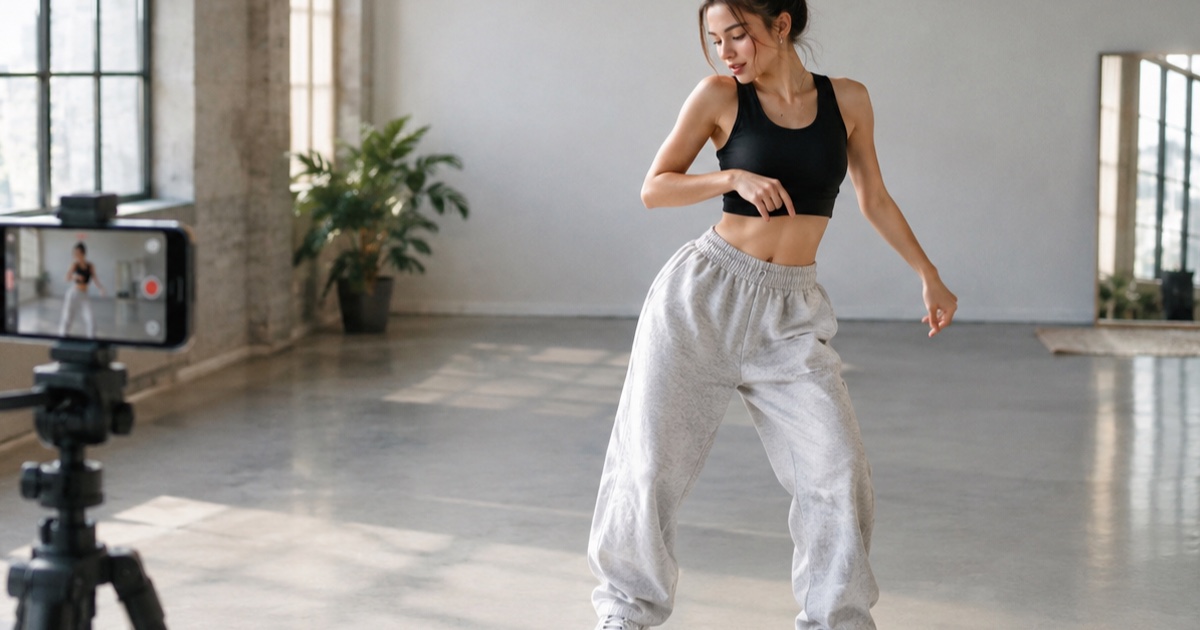
A 12-second vertical clip is a very specific format. It is long enough to hold a full point-and-hold beat, and short enough that most viewers watch it twice before the scroll catches up with them. The "hero point" idea — a planted stance, one arm swinging up into a finger-gun point at the camera, a two-beat hold, then a relaxed settle — comes from the girl-hero concept around IVE's "Looks Can Kill," the title track of their fifth EP. The single was released on 19 October 2026, with the EP following on 26 October 2026, and the finger-gun point choreography is the gesture people keep trying to recreate.
Two facts about this site before anything else. Looks Can Kill AI (lookscankillai.pro) is an independent photo/text-to-video studio built on Seedance 2.0. It is not affiliated with IVE or Starship Entertainment, and it does not include the official recording, the official video, or member likenesses. What you get here is a general-purpose photo-to-video workflow that you point at your own image.
This tutorial takes a single photo and turns it into a 9:16, 12-second clip: how to choose the photo, how to set the canvas, how to write a motion prompt that actually lands the point on the beat, and how to spend credits without burning renders. A standard 720p 12-second clip costs 35 credits, so a first session is usually cheaper than people expect — you can sanity-check the numbers on pricing before you start.
Example loaded — edit it or generate.
This clip: 35 credits · 10 clips a month for $39.90 (Pro), or 102 a year for $319
What a hero-point clip actually looks like
A hero-point clip is not a full dance. It is one gesture, staged properly. Break it into four beats and it becomes much easier to prompt: a settle (weight shifts back, shoulders drop), an approach (the pointing arm travels up and forward), the point (finger-gun extended toward the lens, chin lifted, eyeline locked), and the release (a small shoulder pop or a relaxed drop back to neutral). That is roughly three seconds of action, which is why 12 seconds works — you get room for a slow build, the hold, and a clean loop back to the start.
The reason people ask for this format specifically is that it reads instantly on a phone. Vertical framing puts the pointing hand close to the top third of the frame, the eyeline sits near the middle, and the hold gives the viewer time to register the gesture before the loop restarts. If you want the background concept behind the trend, read what is IVE Looks Can Kill AI first; this post assumes you already know what you want to make.
Why 9:16 and 12 seconds
The studio outputs 9:16 by default and supports 5–12 second clips. Twelve seconds is the right choice for a point clip because the choreography has a natural pause in it. A 5-second clip rushes the approach; a 12-second clip lets the point land and hold. Longer than 12 seconds is not available, and honestly, it is not needed — the loop is the point.
Before you start: photo, permission, credits
Three things to sort out before you touch the studio: the photo, the rights to the photo, and your credit budget.
What makes a good source photo
- One subject only. Group shots confuse the model and you end up with merged limbs.
- Full or half body. You need visible arm room above the shoulder, or the pointing hand gets cropped mid-motion.
- Front or three-quarter view. A profile gives the model almost nothing to work with for a point toward camera.
- Even, simple light. A plain wall or a clean outdoor background is better than a cluttered room with text on the walls.
- No heavy beauty filters or text overlays. Filters get baked into the motion; overlays get animated into gibberish.
The permission rule
Only upload a photo you took yourself, or one you have explicit permission to use. Do not upload photos of IVE members, other artists, or anyone whose likeness you do not have the right to animate. The output is generated from your image — it does not contain member likenesses and it is not a substitute for the official video.
Step-by-step: one photo to a 12-second clip
Here is the whole workflow at a glance:
- Pick and prep a photo you own or have permission to use.
- Open the studio and lock the format to 9:16 and 12 seconds.
- Write the motion prompt using the four-beat structure below.
- Choose 480p, 720p, or 1080p depending on whether this is a test or a final.
- Render, review against the checklist, and re-roll if needed.
- Download, add audio you have rights to, and post.
Step 1 — Prep the photo
Straighten the horizon, crop so there is headroom and clear space above and in front of the shoulder that will do the pointing, and lift the shadows slightly. Do not crop tightly at the hands — the model needs to see where the arm ends to animate it convincingly. A square or portrait original is fine; the studio handles the 9:16 framing, but a source with vertical room gives it more to work with.
Step 2 — Set the canvas
Open the studio, upload the photo, and confirm the output is 9:16 and 12 seconds. Change the length only if you are testing a prompt for the first time — a 5-second render at 480p is a cheap way to find out whether your motion description is working before you commit to a full-length 720p or 1080p pass.
Step 3 — Write the motion prompt
The prompt does the heavy lifting. Use a fixed formula: subject and framing → four action beats → camera behaviour → light and wardrobe → hard constraints. Keep it under about 80 words. Long prompts cause the model to average your beats together, which is how you end up with a vague arm wave instead of a point.
One person, waist-up, plain studio wall. Weight shifts to the back foot, right arm swings up into a finger-gun point at the camera, hold for two beats, small shoulder pop, then relax back to neutral. Camera locked with a slight push-in. Soft key light, clean background. Vertical 9:16, 12 seconds, no text, no cuts, no camera shake.
Two things to avoid: describing more than one gesture (a point and a hair flip and a turn), and asking for fast camera movement. In a 12-second clip, a locked camera makes the point read as choreography rather than chaos. For more prompt patterns, the prompt guide goes deeper, and the feature page covers what the dance mode specifically optimises for.
Step 4 — Pick your resolution
Credits are the only variable cost, and the difference between a draft and a final is large:
| Output | Length | Credits | Best used for | | --------------- | ------ | ------- | --------------------------------- | | 480p | 12s | 20 | Testing a prompt or a new photo | | 720p (standard) | 12s | 35 | Posting to social, most use cases | | 1080p | 12s | 90 | Final export, larger screens |
Credits start at $9.90. One-time packs never expire, monthly credits expire at the end of the billing month, and yearly credits are valid for the billing year — so if you are only making one clip, buy a one-time pack rather than a subscription. Failed renders are refunded automatically, which means a bad generation costs you time but not credits.
Step 5 — Render and review
Watch the result once for motion and once for detail. Motion problems (the point arrives too early, the arm never extends) need a prompt rewrite. Detail problems (warped hands, melting background, a face that drifts) usually need a re-roll with the same prompt, because the seed changed, not the instruction.
| What you see | What to change | | --------------------------------- | ------------------------------------------------------------- | | Arm waves instead of pointing | Name the gesture explicitly: "finger-gun point at the camera" | | Point happens in the first second | Add "slow build" and a settle beat before the point | | Hand leaves the frame | Widen the framing to waist-up in the prompt | | Background melts | Simplify the scene description; remove clutter words | | Face drifts or morphs | Use a clearer, better-lit source photo |
Step 6 — Export and finish
Download the clip, trim the first or last fraction of a second if the loop needs tightening, and add audio you have the rights to use. The official recording is not included and cannot be added by the studio — you supply your own sound, and the same permission logic applies to music as to photos.
Common mistakes to avoid
The three most frequent ones are over-prompting, under-preparing the photo, and rendering at 1080p on the first attempt. Fix the photo first, test the prompt at 480p, and only spend 90 credits once you have seen a 35-credit render you actually like. It also helps to decide the loop point before you generate: if the clip ends mid-point, the loop will feel broken, so ask for a return to neutral in the final beat.
FAQ
Is this an official IVE or Starship tool?
No. Looks Can Kill AI is an independent photo/text-to-video studio built on Seedance 2.0. It is not affiliated with IVE or Starship Entertainment, and it does not contain the official recording, the official video, or any member likenesses.
Can I upload a photo of an IVE member?
No. You may only upload your own photo or a photo you have explicit permission to use. The tool is designed for your own images, and the output is generated from the photo you provide.
Does the clip include the official song?
No. The studio generates video only. You add your own audio afterwards, and you are responsible for making sure you have the rights to whatever track you use.
How many credits does a 12-second clip cost?
A 480p 12-second clip is 20 credits, the standard 720p 12-second clip is 35 credits, and 1080p 12-second is 90 credits. Credits start at $9.90 and the full breakdown is on pricing.
What happens if a render fails?
Failed renders are refunded, so a generation that errors out does not consume your credits. You can simply re-run it.
Do credits expire?
It depends on the pack. One-time packs never expire. Monthly credits expire at the end of the billing month, and yearly credits are valid for the billing year.
Can I make the clip longer than 12 seconds?
No. Output runs from 5 to 12 seconds, with 9:16 as the default aspect ratio. For a point clip, 12 seconds is the useful maximum anyway — the gesture reads better as a loop than as a longer scene.
Related guides
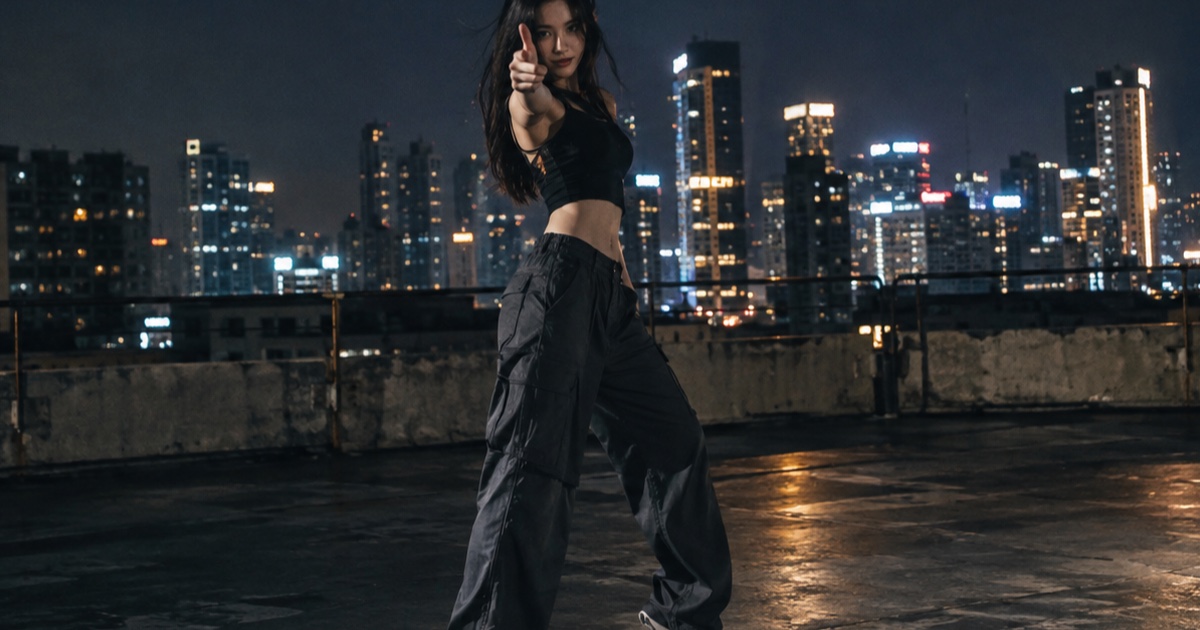
What the IVE Looks Can Kill AI Trend Actually Is
A practical guide to the IVE Looks Can Kill release, the girl-hero concept, fan-made photo-to-dance videos, and where the independent Looks Can Kill AI studio fits.
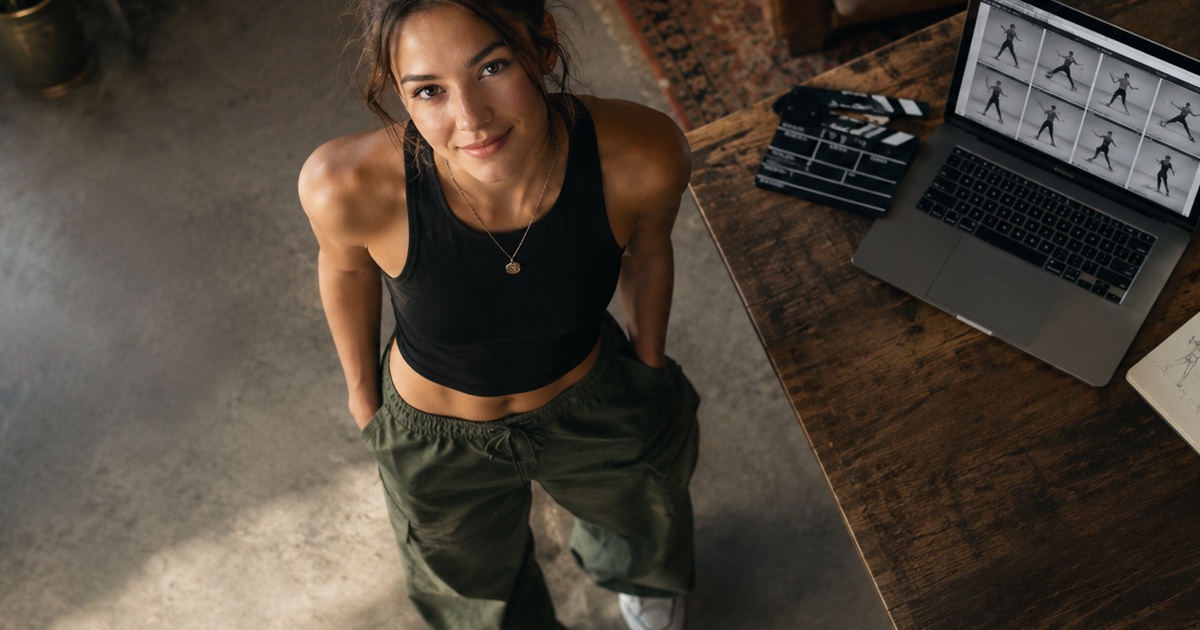
How to Write a Hero-Point Dance Prompt for Looks Can Kill AI
A practical prompt guide for the IVE “Looks Can Kill” hero-point dance vibe: subject lock, scene, one action, camera and exclusions, with five complete example prompts.
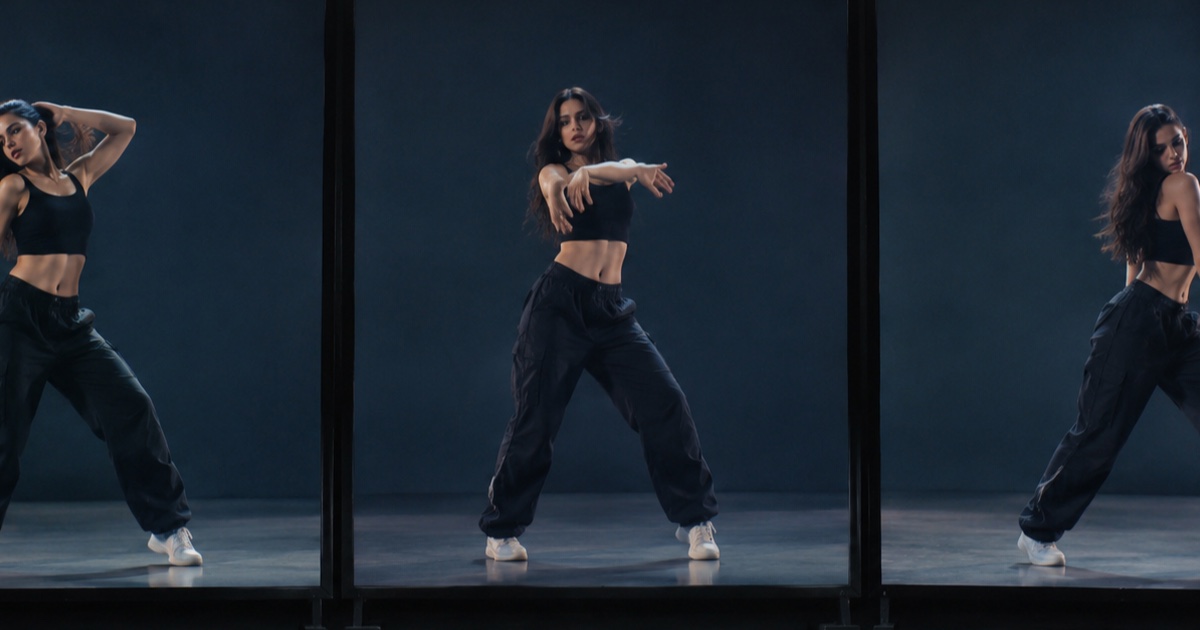
AI Dance Clips in 2026: Dance Templates vs. General Video Models vs. a Photo-First Studio
An honest, practical comparison of the three main ways people make AI dance clips in 2026: dance-template apps, general video models, and a photo-first studio like Looks Can Kill AI.