Text-to-Video Mode: Describe a Fictional Character and Scene Without a Photo
 Looks Can Kill AI Team
Learn how to use text-to-video mode to describe an original character and scene without uploading a photo. Practical prompt tips for Looks Can Kill AI, built on Seedance 2.0.
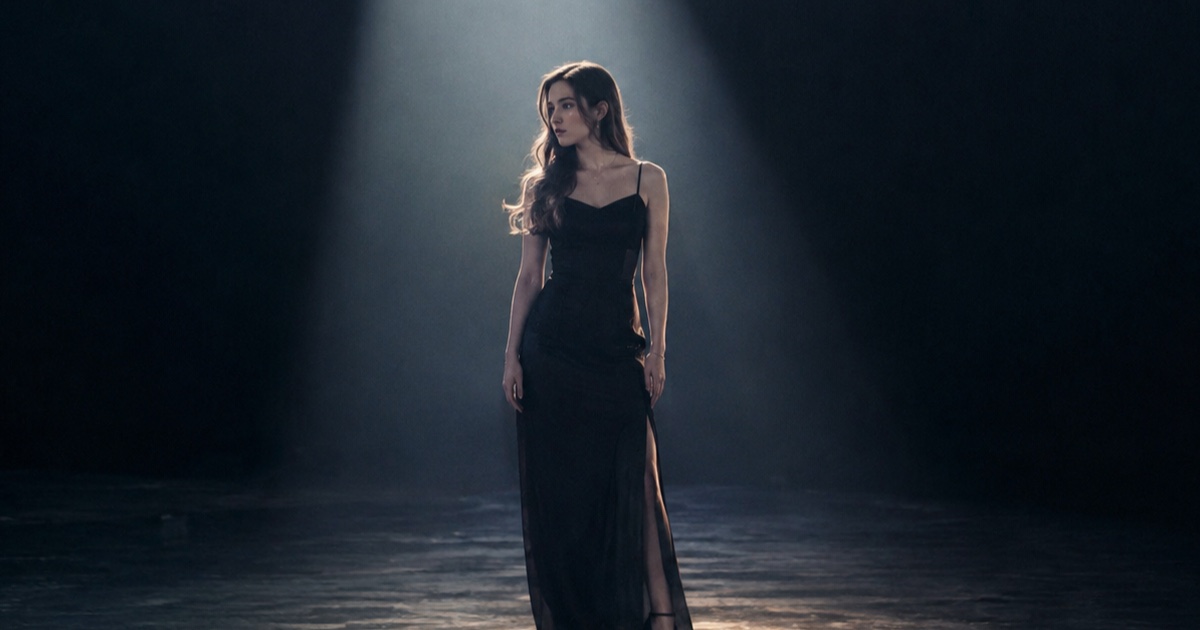
Text-to-video mode is for moments when you want a clip but do not want to upload a photo. Instead of starting from an image, you describe a fictional character and the scene around them. Looks Can Kill AI is an independent photo/text-to-video studio built on Seedance 2.0. It is not affiliated with IVE or Starship Entertainment. If you do upload a photo, you may only upload your own photo or a photo you have permission to use. Text-to-video mode lets you skip that step entirely and work from a written description.
This guide focuses on original characters. IVE is a K-pop girl group under Starship Entertainment, and “Looks Can Kill” is the title track of their fifth EP; the single was released on 19 October 2026 and the EP follows on 26 October 2026. The release uses a girl-hero concept and finger-gun / point choreography. You can use that as a mood reference for an original character, but do not describe a real member or upload a photo you do not have permission to use. The studio does not include the official recording, official video, or member likenesses. For background on the release, see what is IVE Looks Can Kill AI.
The practical challenge is that a text prompt has to do the work a photo would normally do. You need to specify who the character is, what they wear, how they move, where they are, and how the camera sees them. The more clearly you separate those layers, the easier it is to get a usable clip.
Example loaded — edit it or generate.
This clip: 35 credits · 10 clips a month for $39.90 (Pro), or 102 a year for $319
Why text-to-video mode is useful for fictional characters
Text-to-video mode is not a replacement for every photo-based workflow. It is a different starting point. If you already have a photo of a person you own or have permission to use, photo-to-video can preserve that specific look. If you are designing a character from scratch, text-to-video keeps the process flexible. You can change the costume, scene, and camera angle without needing a new source image.
It is also useful when you want to avoid real-person likeness questions. A prompt should describe an original character, not a real performer. Use role, silhouette, costume, color, and attitude rather than “someone who looks like” a named person.
How to describe a fictional character
A character description works best when it moves from broad shape to small details. Start with the role and silhouette, then add costume, color, face, hair, expression, and motion. This gives the model a coherent subject instead of a pile of unrelated adjectives.
Start with role and silhouette
Begin with one clear role and one clear body shape. For example: “a fictional young hero,” “a masked street performer,” or “a confident courier in a futuristic city.” Then add silhouette cues: tall and lean, compact and athletic, broad-shouldered, or light-footed. This matters because the model needs to know how the character occupies space before it can animate them.
If you want a girl-hero mood inspired by the IVE release, describe an original hero rather than a real member. Say “a fictional girl-hero in a fitted varsity jacket” or “an original hero with a sharp, confident stance.” Do not write “the IVE member” or name a real person.
Add costume, props, and color
Costume is one of the strongest controls you have in text-to-video mode. Be specific about garment type, fit, material, and color. “Silver bomber jacket over a black crop top, high-waisted cargo pants, and chunky boots” gives the model more to work with than “cool outfit.”
Props help too, but keep them simple. A single prop like a small prop gun, a finger-gun gesture, a shoulder bag, or a hair clip is easier to render than a crowd of objects. If you want the finger-gun / point choreography feel, describe the gesture directly: “she points at the camera with a finger-gun gesture, then snaps her arm to the side.” Keep it as a movement cue, not an official choreography claim.
Describe face and hair as an original design
For fictional characters, describe face and hair as design choices. “Short black hair with blunt bangs,” “a sharp jawline,” “warm brown eyes,” or “a small scar above one eyebrow” are practical. Avoid describing a real person’s likeness. Also avoid vague phrases like “perfect face” because they do not tell the model what to draw.
If the character wears makeup, treat it as part of the design: “graphic eyeliner,” “glossy lips,” or “a subtle glitter highlight.” These details can read clearly in a short clip.
Add expression and micro-motion
Short clips benefit from a clear expression and one or two small motions. “A confident half-smile,” “a focused stare,” “a quick eyebrow raise,” or “a sharp head turn” can carry a 5–12 second clip. Pair the expression with a simple action: stepping forward, pointing, turning, or adjusting a jacket.
How to describe the scene
Once the character is clear, describe the scene in layers: location, time of day, lighting, background motion, camera angle, and aspect ratio. Keep the background simple enough that the character remains the focus.
Set the stage
Start with a location that has visual contrast. “A rain-slicked rooftop at night,” “a white studio with a single spotlight,” or “a neon-lit alley with wet pavement” are easy to visualize. Then add one or two background details, not ten. A few moving elements, like drifting steam or passing car lights, can make the scene feel alive without crowding the character.
Choose camera and framing
Text-to-video prompts respond well to camera language. Use terms like “medium shot,” “close-up,” “low-angle shot,” “tracking shot,” or “slow push-in.” For default 9:16 output, a vertical medium shot or close-up usually works better than a wide landscape composition. If you want a dance-style clip, say “full-body vertical shot” and leave headroom for movement.
Add lighting and mood
Lighting changes the entire read of a character. “Hard rim light,” “soft studio light,” “cool blue night light,” or “warm practical light” are useful. Mood words like “confident,” “tense,” or “playful” should support the visual description, not replace it. “Confident low-angle shot with hard rim light” is more actionable than “cool vibe.”
A practical prompt template
Use a numbered structure in your own notes before you paste the final prompt into the studio. This keeps the character and scene from blending into a confusing paragraph.
- Character role: “A fictional girl-hero.”
- Silhouette and costume: “Athletic build, silver varsity jacket, black cargo pants, chunky boots.”
- Face and hair: “Short black hair with blunt bangs, graphic eyeliner, confident half-smile.”
- Action and gesture: “Steps forward, points at the camera with a finger-gun gesture, then turns slightly.”
- Scene and lighting: “Rain-slicked rooftop at night, neon signs behind her, hard rim light.”
- Camera and format: “Vertical medium shot, slow push-in, 9:16, 8 seconds.”
This is a starting point, not a formula. If the result is too busy, remove background details. If the character feels generic, add one distinctive costume or hair detail. If the motion is unclear, simplify the action to one verb.
Prompt layers at a glance
| Layer | What to write | Example phrase | | -------------- | ---------------------------------- | ----------------------------------------------- | | Character | Role, build, silhouette | “A fictional young hero with an athletic build” | | Costume | Garment type, fit, color, material | “Silver varsity jacket over a black crop top” | | Face and hair | Original design details | “Short black hair, blunt bangs, sharp eyeliner” | | Action | One clear gesture or movement | “Points at the camera, then turns” | | Scene | Location, time, background motion | “Neon-lit rooftop at night, light rain” | | Camera | Shot size, angle, movement | “Vertical medium shot, slow push-in” | | Light and mood | Light quality and tone | “Hard rim light, confident mood” |
Resolution, length, and credits
Text-to-video output is 9:16 by default and runs 5–12 seconds. A standard 720p 12-second clip costs 35 credits. A 480p 12-second clip costs 20 credits, and a 1080p 12-second clip costs 90 credits. Credits start from $9.90. Failed renders are refunded. One-time packs never expire; monthly credits expire at the end of the billing month, and yearly credits are valid for the billing year. Check pricing for current packs.
For dance-style or movement-heavy prompts, the feature page is the better reference. If you want to build a choreography-focused clip from a character description, read how to make a Looks Can Kill AI dance video. If you prefer to start from an image you own or have permission to use, use photo mode instead.
Example: an original girl-hero scene
Here is a compact prompt you can adapt without using any real person’s likeness:
A fictional girl-hero with an athletic build, short black hair with blunt bangs, graphic eyeliner, and a confident half-smile. She wears a silver varsity jacket over a black crop top, high-waisted cargo pants, and chunky boots. She steps forward on a rain-slicked rooftop at night, points at the camera with a finger-gun gesture, then turns her shoulder with a sharp look. Neon signs glow behind her, light rain falls, hard rim light, vertical medium shot, slow push-in, 9:16, 8 seconds.
This prompt describes an original character and scene. It does not claim to include the official recording, official video, or member likenesses. It also does not require a photo upload. If you later decide to use a photo, remember that you may only upload your own photo or a photo you have permission to use.
FAQ
Can I use text-to-video mode without uploading any photo?
Yes. Text-to-video mode works from a written description. You can create a fictional character and scene without uploading a photo. If you switch to photo mode, you may only upload a photo you own or have permission to use.
Can I describe a character that looks like an IVE member?
No. Keep the character original. Do not describe a real performer’s likeness or use the studio to imitate a member. You can reference a general mood like “girl-hero” or “confident point gesture,” but the character should be your own fictional design.
Does the studio include the official “Looks Can Kill” song or video?
No. Looks Can Kill AI is independent and is not affiliated with IVE or Starship Entertainment. It does not include the official recording, official video, or member likenesses. The site is a photo/text-to-video studio built on Seedance 2.0.
How long can clips be, and what aspect ratio do they use?
Output is 9:16 by default and runs 5–12 seconds. You can choose 480p, 720p, or 1080p. A standard 720p 12-second clip costs 35 credits; 480p 12 seconds costs 20 credits; 1080p 12 seconds costs 90 credits.
What happens if a render fails?
Failed renders are refunded. One-time packs never expire. Monthly credits expire at the end of the billing month, and yearly credits are valid for the billing year.
Where can I see the text-to-video studio and pricing?
Open the studio to start a prompt, and visit pricing for credit packs and current details.
Related guides
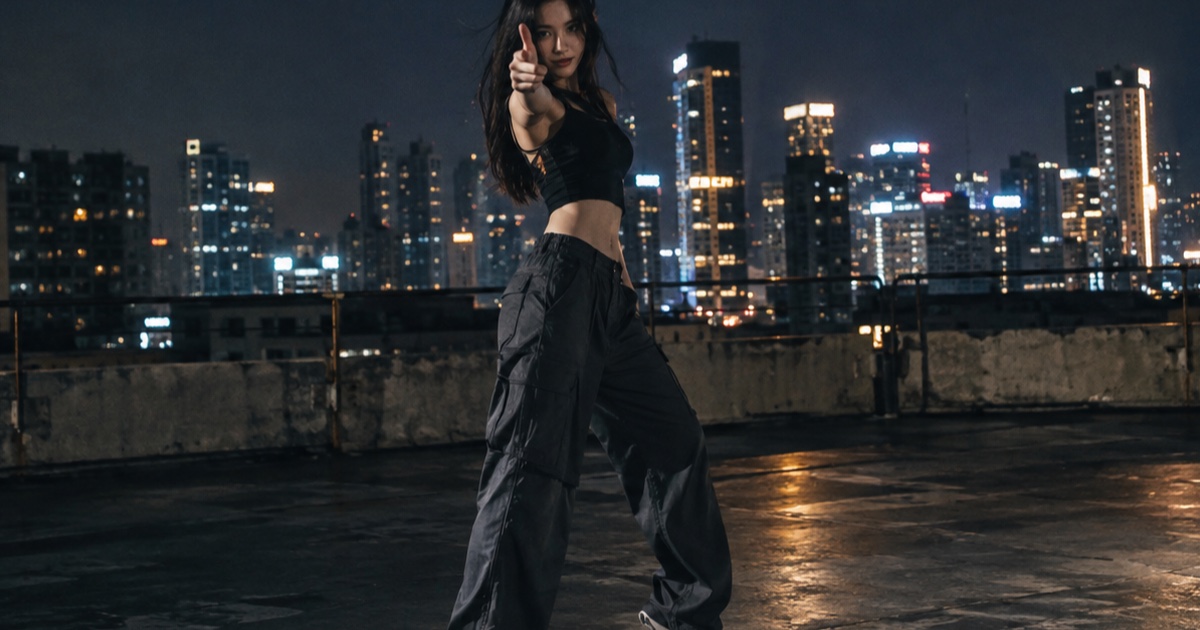
What the IVE Looks Can Kill AI Trend Actually Is
A practical guide to the IVE Looks Can Kill release, the girl-hero concept, fan-made photo-to-dance videos, and where the independent Looks Can Kill AI studio fits.
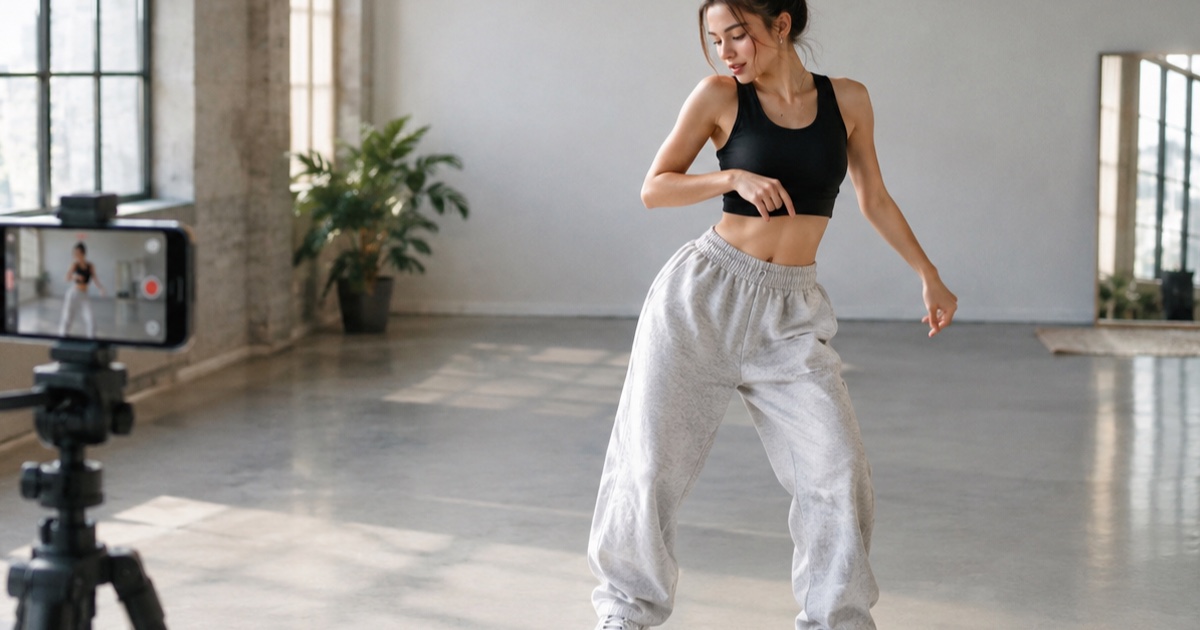
How to Make a 12-Second Vertical Hero-Point Dance Clip from One Photo
A practical step-by-step tutorial for turning one photo into a 9:16 hero-point dance clip with Looks Can Kill AI — source photo tips, motion prompts, credit costs, and export notes.
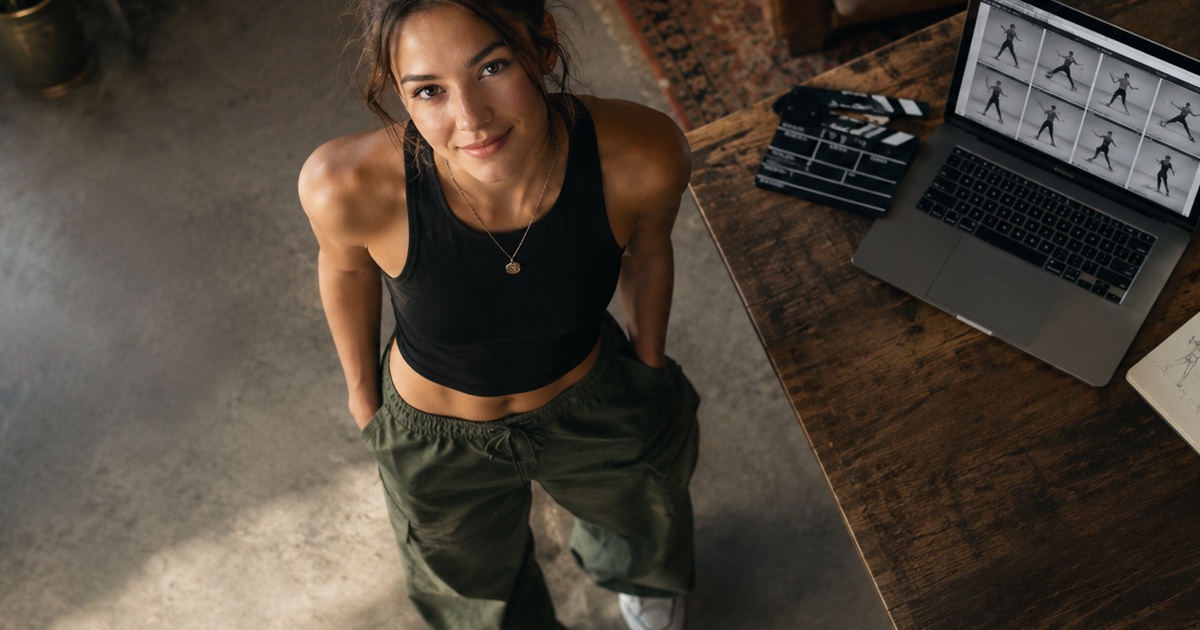
How to Write a Hero-Point Dance Prompt for Looks Can Kill AI
A practical prompt guide for the IVE “Looks Can Kill” hero-point dance vibe: subject lock, scene, one action, camera and exclusions, with five complete example prompts.